

eSIM basics
eSIM not working abroad? 8 fixes that solve almost every problem

You land, switch off flight mode, and nothing. No internet, or bars but no data. Don't panic. Almost every eSIM problem comes down to one setting, and you can fix it yourself in a couple of minutes.
Work through these fixes in order. Most people are online again by the third one.
1. Turn on data roaming for the eSIM
This is the fix for most cases. A travel eSIM always connects as a visitor, so it needs data roaming switched on, even though it costs you nothing extra.
On iPhone, go to Settings > Mobile Service (or Cellular), tap your travel eSIM, and turn on Data Roaming.
On Android, go to Settings > Network & internet > SIMs (or Connections on Samsung), tap the travel eSIM, and turn on Roaming.
Turn data roaming on for the travel eSIM only. Leave it off for your home SIM, or your home carrier may charge you.
2. Choose the eSIM for mobile data
Your phone can only use one line for internet at a time. If it is still trying to use your home SIM, the eSIM sits there unused.
On iPhone, go to Settings > Mobile Service > Mobile Data and pick the travel eSIM. Then turn off Allow Mobile Data Switching, so the phone doesn't jump back to your home line.
On Android, go to Settings > Network & internet > SIMs and set the travel eSIM as the SIM for mobile data.
3. Restart the phone
It sounds too simple, but a restart forces the phone to register on a local network from scratch. If you landed with the phone in flight mode, the first connection sometimes gets stuck. Restart once, wait a minute, and check again.
4. Check that the eSIM line is switched on
Phones can turn an eSIM line off without deleting it. In Settings > Mobile Service on iPhone, or the SIMs page on Android, make sure the travel eSIM shows as on.
5. Check the APN
The APN tells your phone how to reach the internet on the local network. Most phones set it on their own, but sometimes the field stays empty.
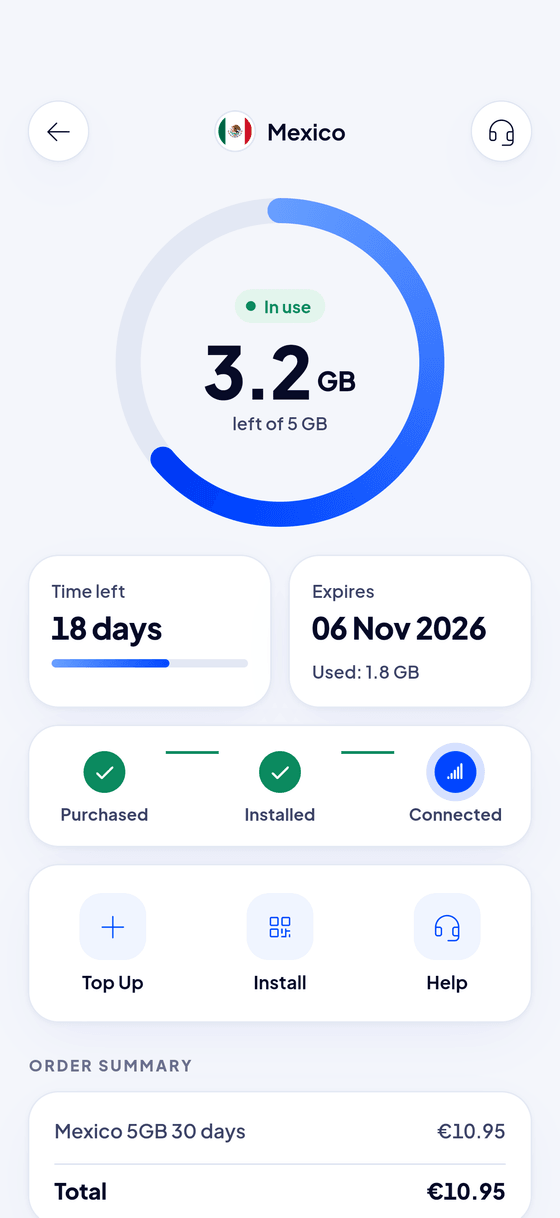
In the Blue eSIM app, open your eSIM and look under Network settings. You'll find the APN there, and you can tap it to copy it.
On iPhone, paste it into Settings > Mobile Service > [your eSIM] > Mobile Data Network, in the APN field under Mobile Data. On Android, go to the eSIM's settings, open Access Point Names, add a new APN and paste it into the APN field.
6. Pick a network by hand
If you have bars but no data, your phone may have joined a network your plan doesn't use. The Blue eSIM app lists the networks for each country on your eSIM's page.
On iPhone, go to Settings > Mobile Service > [your eSIM] > Network Selection, turn off Automatic, and choose one of those networks. On Android, turn off Automatically select network in the eSIM's settings and pick one from the list.
Switch back to automatic once you are connected, so the phone can move between networks as you travel.
7. Make sure you are in a covered country
The eSIM only connects in the countries its plan covers. If you bought a Turkey plan and you are changing planes in Doha, it won't connect there. That is normal. It will work when you reach your destination.
8. Check that the eSIM was installed only once
An eSIM profile installs once. If you deleted it and scanned the QR code again, the second install may fail. Don't delete an eSIM until your trip is over. If you did, contact us and we'll help.
Still not working?
Write to us by chat, WhatsApp or email, and tell us which phone you have and what you see on the screen (no service, bars but no internet, or an error). A screenshot helps a lot. You'll find our contact options in the app under Help.
Frequently asked questions
My eSIM shows bars but no internet. What should I do?
Turn on data roaming for the eSIM and choose it for mobile data. If that doesn't work, check the APN in the Blue eSIM app and add it to your phone's settings.
Do I need Wi-Fi to install the eSIM?
You need an internet connection to install it, so install it at home on Wi-Fi before you travel. Once it is installed, it connects by itself at your destination.
Will turning on data roaming cost me money?
Not on the travel eSIM. Data roaming only costs extra on your home SIM, so keep it off there.